



Yes. Knit syncs Pipedrive deals to QuickBooks as invoices automatically — contacts are matched, products are mapped, and payment status is tracked back in Pipedrive without manual re-entry.


Automate your Pipedrive Deals to QuickBooks Invoice Sync
Sync Pipedrive deals to QuickBooks as invoices automatically — contacts matched, products mapped, and payment status tracked back in Pipedrive without manual re-entry.
Try:
Trusted by teams already building on Knit· 4.9/5 on G2·
 Google for Startups Accelerator
4.9/5 on G2·Google for Startups Accelerator












Create Invoices For All Closed Deals Automatically
A deal won in Pipedrive shouldn't mean manual invoice work in QuickBooks. Knit automates the full handoff — won deal to sent invoice, no re-entry required.
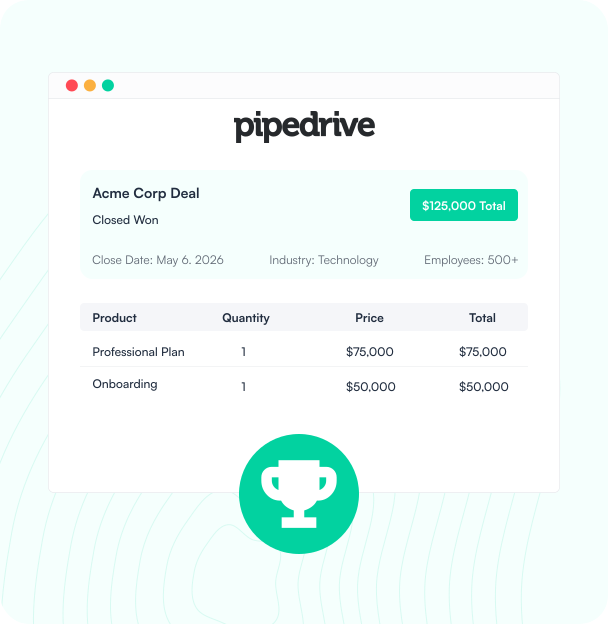
Deal Won in Pipedrive
When a deal is marked Won in Pipedrive, Knit captures deal value, products, and contact details for QuickBooks.
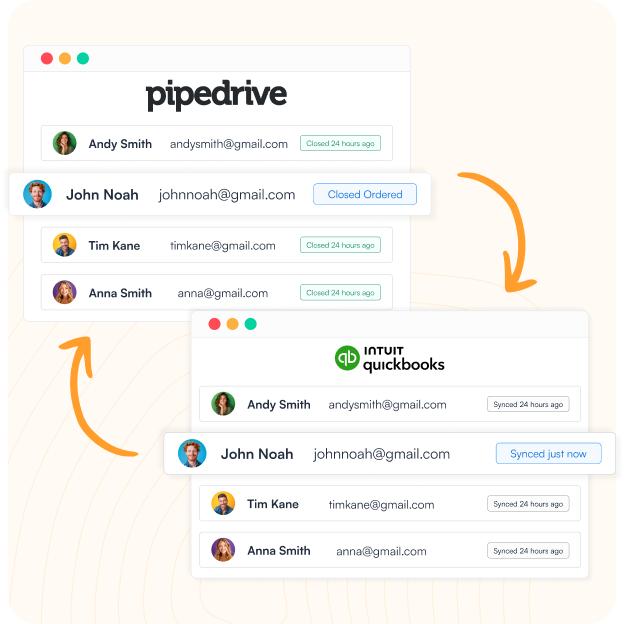
Customer Synced to QuickBooks
Knit matches or creates the customer in QuickBooks — no duplicate records, no manual lookup between systems.
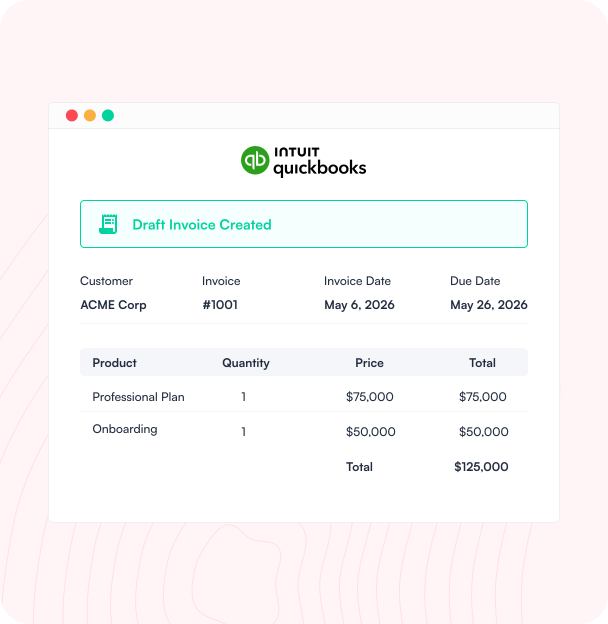
Invoice Created in QuickBooks
A QuickBooks invoice is created with all products, pricing, and deal terms from Pipedrive — ready to send.
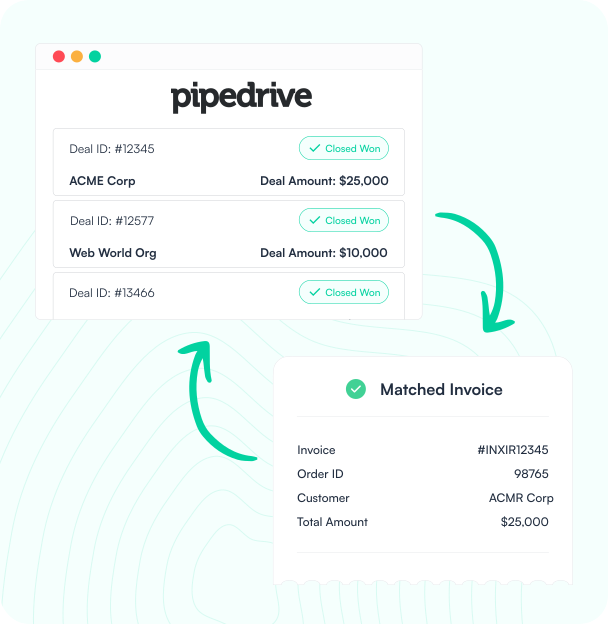
Payment Status Tracked in Pipedrive
Invoice payment status syncs back to Pipedrive — track deals from won to paid without leaving your CRM.
Closed Deals. Automated Invoicing
Knit connects Pipedrive and QuickBooks across deals, contacts, and invoices — so your team stops re-entering data between CRM and accounting.
Deal-to-Invoice Automation
Won deals in Pipedrive become QuickBooks invoices automatically — products, pricing, and customer data intact, no manual steps.
Contact & Customer Sync
Pipedrive contacts sync to QuickBooks as customer records automatically — always current in both systems, never duplicated.
Product & Line Item Sync
Pipedrive products and deal line items map to QuickBooks items automatically — accurate pricing on every invoice, no manual lookup.
Invoice & Payment Visibility
QuickBooks invoice status and payment updates sync back to Pipedrive — track every deal from won to paid in one place.
How it Works
From Setup to Live In Minutes
No engineers, no custom code, no manual invoice routines. Connect Pipedrive and QuickBooks through Knit's no-code workflow builder in one session.

Connect Your Apps
Authorize Pipedrive and QuickBooks through Knit's secure connections — no API keys to manage, no credentials stored on our servers.

Map Your Objects
Map Pipedrive deals, products, and contacts to QuickBooks invoices, items, and customers using Knit's visual mapper. No code required.

Go Live
Activate the sync. Won deals flow to QuickBooks on close and payment status returns to Pipedrive automatically.

Knit Handles the Rest
Knit monitors every sync, alerts you to mapping gaps, and handles API changes from either app automatically.
#1 in Ease of Integrations

4.9 out of 5 stars on G2




Frequently Asked Questions
Does Pipedrive integrate with QuickBooks?
How do you sync Pipedrive deals to QuickBooks invoices?
When a deal is marked Won in Pipedrive, Knit captures deal value, products, and contact details, matches or creates the customer in QuickBooks, and creates an invoice with all products, pricing, and deal terms carried over automatically.
What data syncs between Pipedrive and QuickBooks?
The most common data synced includes won-deal-to-invoice conversion, contact records (as QuickBooks customers), product and deal line items, and invoice payment status flowing back to Pipedrive.
Can I track a deal from won to paid inside Pipedrive?
Yes — QuickBooks invoice status and payment updates sync back to Pipedrive automatically, so you can track every deal from won to paid without leaving your CRM.
Related Workflows


Xero For Closed Deals on Hubspot
Sync HubSpot deals to Xero as invoices automatically — contacts matched, line items mapped, and payment status tracked back in HubSpot without…

HubSpot – NetSuite Integration
Sync contacts, deals, sales orders, and invoices between HubSpot and NetSuite automatically — no manual exports, no data gaps between your CRM…


Salesforce – NetSuite Integration
Sync contacts, deals, orders, and invoices between Salesforce and NetSuite automatically — no manual exports, no duplicate data entry across your CRM…